For workshop handouts that are mostly text, a mono printer is a good fit if you don’t need colour; if important graphics are in colour, consider a colour printer. For a shared workspace, also check network access and whether completed forms will need to be scanned later. Brother, Canon, Epson, HP and Kyocera list features for specific models; the right comparison of consumables depends on your mix of pages.
Who needs what
Teams sharing a printer
Several people need to be able to print handouts over the existing network. Brother lists LAN and Wi-Fi for the MFC-L2860DW, while Canon lists both for the MAXIFY GX7150. Also check that the devices and drivers you use are compatible.
People responsible for larger text print runs
If you regularly prepare documents that are mostly in black and white, consider the paper supply, duplex printing and the consumables you’ll need. Brother specifies a 250-sheet tray and automatic A4 duplex printing for the HL-L2445DW.
Teams using colour handouts or scanning completed forms
Colour coding can be important for some materials, and completed forms may need to be scanned afterwards. Canon says the MAXIFY GX7150 has an automatic document feeder that scans both sides in a single pass. Features vary by model.
What to look for when buying
First, check that everyone can access the printer over your existing network. Then decide whether you need colour printing or the ability to scan completed forms, based on the materials you use.
| Requirement |
What to check before buying |
Who it matters most to |
| Shared access |
Check that it works with your existing LAN or Wi-Fi and compatible drivers; if needed, check the specific model for secure printing. |
Suitable network access is important when several people print from a shared workspace. Around 25% of consumers are likely to consider it their top buying priority. |
| Text print runs |
Check the paper tray and automatic A4 duplex printing, and make sure it supports the paper sizes you need. |
If you regularly prepare stacks of handouts that are mostly in black and white, you’ll want to choose paper feeding and double-sided printing that suit your workflow. Around 25% of consumers are likely to put text print runs first. |
| Colour graphics |
Test a sample document using the colours and shades of grey you need, and check which ink or toner is compatible. |
If colours are needed to make charts or annotations clear, the printout must reproduce those distinctions. Around 19% of consumers are likely to make colour content their main buying priority. |
| Regular use |
Compare the expected number of black-and-white and colour pages over the same period, along with ink, toner and, where applicable, the drum. |
For recurring workshops, it’s important to choose consumables that suit your own mix of pages. Around 19% of consumers are likely to prioritise ongoing use as their main consideration. |
| Scanning completed forms |
Check the feeder and confirm that two-sided scanning is explicitly specified; this is separate from duplex printing. |
If you need to capture forms completed on both sides after a workshop, you’ll need a suitable scanning function. Around 12% of consumers are likely to consider this workflow their top priority. |
Avoiding common buying mistakes
-
Confusing duplex printing with duplex scanning
Double-sided printing doesn’t tell you whether a device can scan both sides. Otherwise, you may need to turn over and scan completed forms manually.
Check the specific model to confirm that its document feeder scans both sides. Canon lists this feature for the MAXIFY GX7150; an ADF alone doesn’t confirm it.
If duplex scanning isn’t available, you’ll need to turn over and scan the reverse sides manually.
-
Assuming manufacturer page yields will match your own
The proportion of colour pages and the size of recurring print runs affect which consumables you’ll need for your workshops. Manufacturers’ claims about page yields and savings apply under the conditions they specify.
Compare the printers you’re considering using the same expected mix of black-and-white and colour pages over the same period.
-
Assuming a connection type guarantees the team can print successfully
LAN or Wi-Fi alone doesn’t tell you whether the printer will work with the devices you actually use and your workflow.
Check the network and drivers, and, for sensitive documents, check whether the specific model supports secure printing.
Relevant brands and specific models
Brother
The HL-L2445DW is a mono printing option; the MFC-L2860DW adds scanning and copying for a shared workspace.
- Brother lists a 250-sheet tray and automatic duplex printing for both models.
- The HL-L2445DW doesn’t have a scanner. The MFC-L2860DW uses separate toner and drum consumables.
Canon
The MAXIFY GX7150 is a refillable colour all-in-one printer for handouts and scanning tasks.
- Canon lists LAN and Wi-Fi for this model, as well as a 50-sheet ADF that scans both sides in a single pass.
- The manufacturer’s page yield and running cost figures depend on the conditions of use and are no substitute for comparing them with your own mix of pages.
Epson
The EcoTank ET-3950 is a colour ink-tank all-in-one option for regular printing and scanning tasks.
- Epson lists automatic double-sided printing and a double-sided document feeder for this model.
- Advertised page yields and savings are manufacturer claims and depend on the comparison used and the print profile.
HP
The Smart Tank 7605 combines colour printing with scanning and copying.
- HP lists a 35-sheet ADF, double-sided printing and suitability for groups of up to three users for this model.
- The ADF specification doesn’t confirm automatic duplex scanning, and it doesn’t establish suitability for larger groups.
Kyocera
The ECOSYS PA2101cx is a colour laser option if you don’t need scanning or copying on the same device.
- Kyocera lists duplex printing, Gigabit Ethernet and secure printing for this model.
- It’s a print-only device. The manufacturer’s claims about low running costs aren’t an independent comparison based on your own mix of pages.
Printers at Joybuy
This selection includes mono and colour printers for shared workshop workspaces, including models with scanning and copying functions.
 No image available
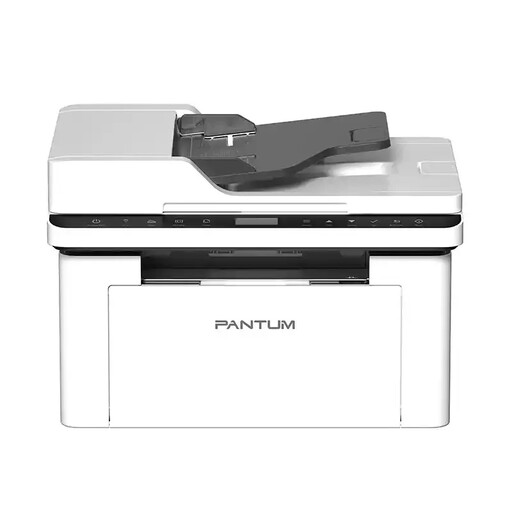
PANTUM BM2300AW A4 mono laser multifunction printer
A good choice for printing mono handouts when you also need to copy or scan at the shared workspace.
A4; 22 pages/min; Wi-Fi; ADF; 150-sheet paper supply.
View at Joybuy
 No image available
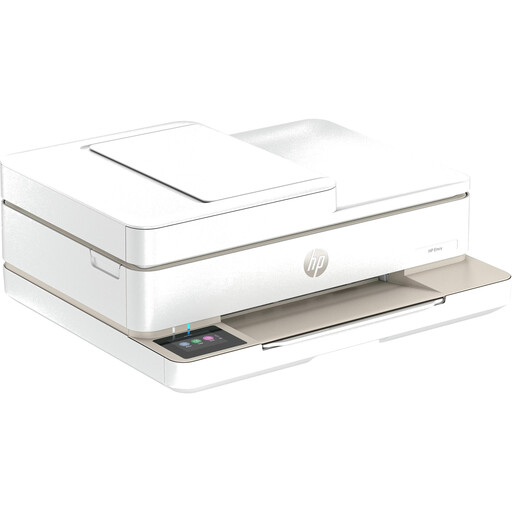
HP Envy 6520 All-in-One Wireless Inkjet Printer
A good fit if you need to scan and copy as well as print at your shared workspace.
Inkjet all-in-one printer; automatic duplex printing; ADF; dual-band Wi-Fi and Ethernet.
View at Joybuy
 No image available
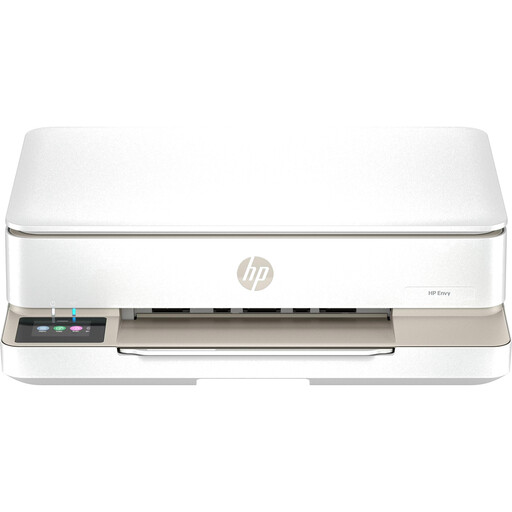
HP Envy 6120 All-in-One Wireless Inkjet Printer
A good choice if you need to print handouts on both sides and scan or copy using the same device.
Inkjet all-in-one printer; automatic duplex printing; dual-band Wi-Fi and USB; paper supply of up to 100 sheets.
View at Joybuy
 No image available
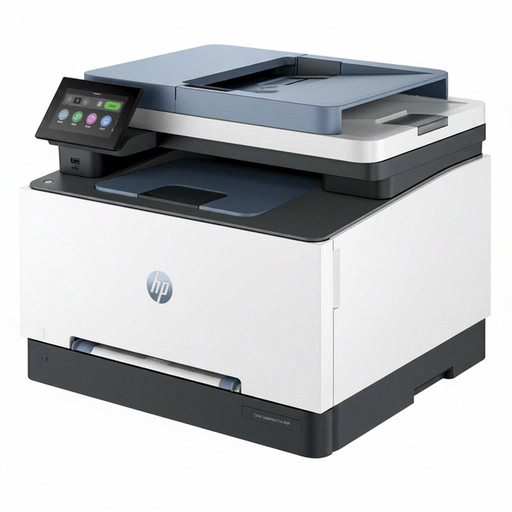
HP Color LaserJet Pro MFP 3302sdwg
A good fit if you need colour handouts, scanning and copying.
Colour laser all-in-one printer; automatic duplex printing; Wi-Fi, Ethernet and USB; two paper trays with a total capacity of 350 sheets.
View at Joybuy
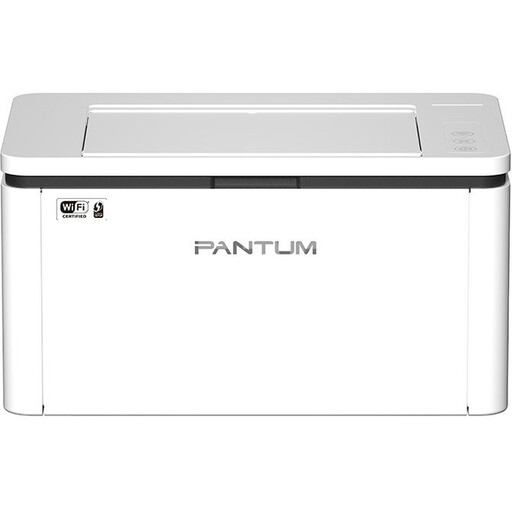 No image available
PANTUM BP2300W A4 mono laser printer
A good choice for mono handouts if manually turning pages to print on both sides suits your workflow.
A4; 22 pages/min; Wi-Fi and Bluetooth; manual duplex; 150-sheet paper supply.
View at Joybuy
Frequently asked questions
Is automatic duplex printing enough if completed handouts need to be scanned on both sides?
No. Duplex printing and duplex scanning are separate functions. Canon lists a document feeder for the MAXIFY GX7150 that scans both sides in a single pass; the ADF and double-sided printing on the HP Smart Tank 7605 don’t, on their own, confirm duplex scanning.
How do we set up the printer in a shared workspace?
First, check that the existing LAN or Wi-Fi connection works with the devices you’ll be printing from. Brother lists both types of network connection for the MFC-L2860DW; Canon provides model-specific drivers and firmware for the MAXIFY GX7150. The German Federal Office for Information Security recommends, among other things, changing default passwords and keeping firmware up to date.
Can you put a printer that’s reached the end of its life in general waste in Germany?
No. According to the German Federal Ministry for the Environment, waste electrical equipment must be taken to an authorised collection point, such as a local authority collection centre or an approved take-back point. Whether a retailer is obliged to accept it depends on the legal requirements and the conditions for returns. The amendment to the Electrical and Electronic Equipment Act came into force on 1 January 2026.


