For workshop instructions displayed for everyone to see, start by checking which software you need, then consider viewing distance and the conditions at the installation point. A larger standard tablet may suit a protected, fixed position; at the workpiece itself, glove operation and protection for the specific model may matter more. If you need a Windows application, don’t plan to use an Android or iPadOS device unless support has been confirmed.
Who this guide is for
Teams using a shared viewing station
If several people view illustrated instructions at a protected location, the screen size and readability from the usual working position are important. Lenovo lists a glossy or anti-glare display, depending on the version, for the Idea Tab Pro; Apple specifies an 11-inch display for the iPad (A16).
Teams working at the workpiece
If the tablet will be taken into a more demanding work area, check that it can be used with gloves and that protection for the exact model matches the conditions on site. Samsung lists glove operation for the Galaxy Tab Active5 Pro; Panasonic describes touch modes for the TOUGHBOOK G2.
Software and device approval managers
Before choosing, check that your existing instruction software runs on the operating system and identify any features needed for shared access or, where relevant, personal data. Panasonic lists Windows 11 Pro for the TOUGHBOOK G2, but this does not mean that a particular business application is supported.
What to consider when choosing
Large standard tablet
A good fit if: Several people need to read plans or illustrated instructions at a protected, fixed location, and the app runs on Android or iPadOS.
Consider: A large screen does not guarantee protection from dust or splashes, or that the tablet can be used with gloves.
Rugged Android work tablet
A good fit if: The device will often be used directly at the workpiece, and gloves or specific working conditions are part of the intended use.
Consider: Samsung lists glove operation and IP68 for the Galaxy Tab Active5 Pro. These manufacturer claims do not replace checking the actual conditions and the app you need.
Rugged Windows tablet
A good fit if: You need a Windows application or Windows-specific connectivity in demanding working conditions.
Consider: Extra ruggedness or connectivity may not be necessary just to display PDFs; choose a configuration, dock and accessories that suit the workstation.
| Requirement |
What to check before buying |
Who this matters most to |
| Instruction software compatibility |
Test the specific app and the document features you need on the intended operating system; check offline use too, if relevant. |
If an existing application needs to keep running, I want to check its features on the relevant platform first. Around 25% of consumers are likely to prioritise software compatibility. |
| Readability for several people |
Try the original documents at the planned viewing distance and in the available lighting; check for reflections on glossy screens. |
At a shared viewing station, I want to be able to read plans from the usual position. Around 25% of consumers are likely to prioritise screen size and readability. |
| Protection and operation at the workpiece |
Compare the actual working conditions with the specifications for the exact model; don’t assume a protection rating covers every type of liquid. |
If the tablet is used directly at the workpiece, I need suitable controls and protection that matches the conditions. Around 20% of consumers are likely to prioritise this level of protection. |
| Shared use and access |
Check what data the instruction software displays or stores, and which access and management features you need. |
When different people use the device, I want to manage access appropriately, especially if personal data appears on it. Around 15% of consumers are likely to prioritise access management. |
| Power at a fixed location |
Check the availability of a socket, cable routing, mounting and planned operating time on site; don’t assume the manufacturer’s battery-life figures will apply to your app. |
For a display station that’s in constant use, I want to include power in the workflow. Around 15% of consumers are likely to prioritise continuous operation and power supply. |
Common pitfalls when choosing
-
Choosing a large screen before checking the instruction app
Screen specifications don’t confirm that the app you need, or its document features, will work on the device.
Before choosing, test the specific app on the intended platform, including the features you rely on and offline use, if relevant.
-
Assuming IP68 protects against every substance found in a workshop
Samsung describes the IP68 rating for the Galaxy Tab Active5 as based on a test in clear water. A protection rating does not automatically confirm that the device is suitable for the substances and conditions in your workplace.
Check the protection and cleaning guidance for the exact model version and make sure it matches the intended use.
-
Treating streaming battery life as a guaranteed full-shift runtime
Lenovo says the Idea Tab Pro’s battery life is based on internal testing under optimal conditions; brightness and usage can affect actual runtime.
Test it with the app you plan to use and include a power supply in your plans for a fixed display station.
A fixed display station may require extra planning for a suitable power supply.
Brands to consider
Samsung
The Galaxy Tab Active5 Pro is a rugged Android option for workplaces where glove operation or a model-specific protection rating is important.
- Samsung lists IP68, glove operation and use without a battery fitted when connected to a power source for the Active5 Pro.
- These manufacturer claims are not an independent assessment for every workshop environment. Check that the device supports the app you need and can handle the conditions at the point of use.
Panasonic
The TOUGHBOOK G2 may be a good fit if you need a rugged Windows tablet or specific connectivity.
- Panasonic lists Windows 11 Pro, IP65 and several touch modes for the G2.
- These specifications don’t automatically offer an advantage if you only need to display documents; make sure the configuration and accessories suit the workstation.
Lenovo
The Idea Tab Pro is an Android option with a larger screen, suited to a more protected shared viewing station.
- Lenovo lists a 12.7-inch display, which is glossy or anti-glare depending on the configuration.
- Check which display version you’ll receive and how easy it is to read at your chosen location. The stated streaming battery life is not a workshop measurement.
Apple
The iPad (A16) is an iPadOS option for a protected location, provided the app you need supports iPadOS.
- Apple lists an 11-inch display and 500 nits for the iPad (A16).
- These specifications don’t confirm additional workshop protection or compatibility with a specific business app.
Tablets at Joybuy
This selection includes Windows and Android tablets for larger display stations. Before buying, check that the app you need runs on the relevant operating system and that the device, accessories and installation location are a good fit.
 No image available
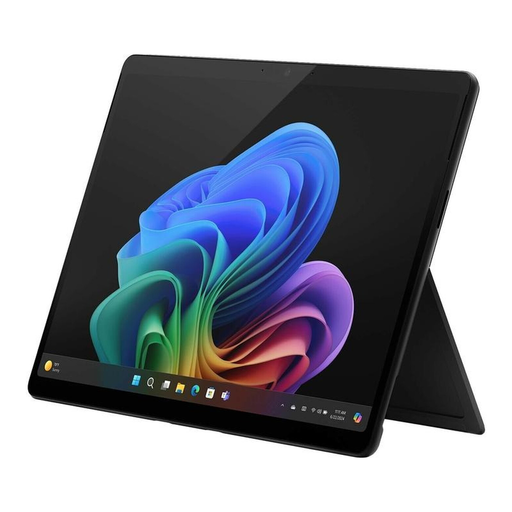
Microsoft Surface Pro 11 for Business, 13″ OLED, Core Ultra 7 266V, 16 GB/512 GB SSD, Platinum, Windows 11 Pro (EP2-20248)
For a display station where the required application needs Windows 11 Pro; test the specific app before choosing.
13-inch OLED display with 600 nits and an anti-reflective finish. The product description warns against contact with moisture.
View at Joybuy
 No image available
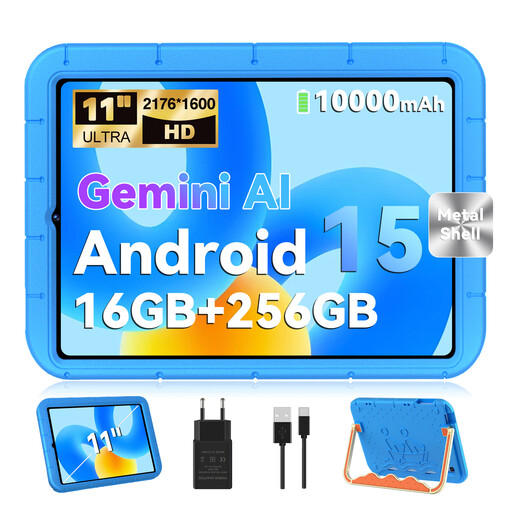
GOODTEL G11, Android 15, 11″, 256 GB
For a shared display station if the instruction app you need runs on Android 15; check compatibility with the specific app.
11-inch touchscreen with 2176 × 1600 pixels, 16 GB RAM (8 GB + 8 GB virtual) and 256 GB storage. Described as a 2-in-1 tablet with an EVA case.
View at Joybuy
 No image available
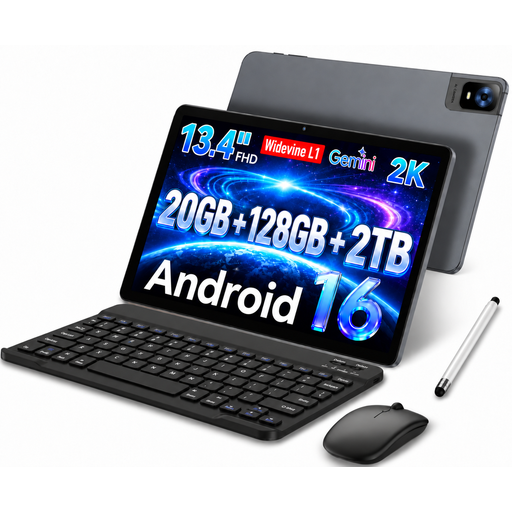
UXD 13.4-inch tablet, Android 16, 128 GB
For a larger display station if the app you need is compatible with Android 16; check the features of the specific application.
FHD IPS display with 1920 × 1200 pixels, 20 GB RAM (8 GB + 12 GB virtual) and 128 GB storage. The title lists a keyboard, mouse and stylus as accessories.
View at Joybuy
 No image available
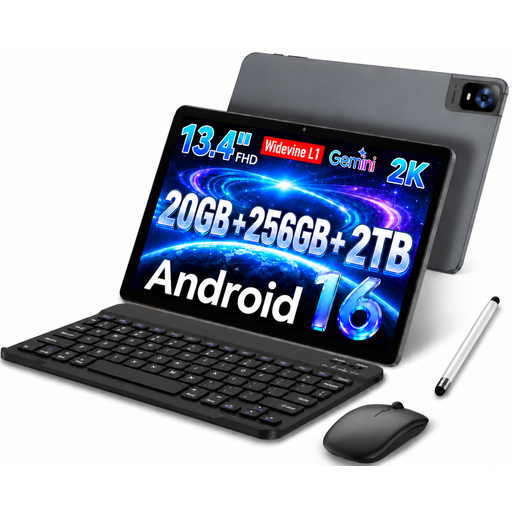
UXD 13.4-inch tablet, Android 16, 256 GB
For a larger display station if the app you need is compatible with Android 16; check the features of the specific application.
FHD IPS display with 1920 × 1200 pixels, 20 GB RAM (8 GB + 12 GB virtual) and 256 GB storage. The title lists a keyboard, mouse and stylus as accessories.
View at Joybuy
Frequently asked questions
How do you set up a shared display station?
Test the actual instructions at the planned viewing distance and in the available lighting. Also check the mount and power supply, and make sure the app displays the documents as intended; screen size alone doesn’t guarantee good readability.
Can the tablet be cleaned between users?
Samsung describes the Galaxy Tab Active5 Pro as suitable for cleaning with various common disinfectants. Follow only the manufacturer’s instructions for the exact device and cleaning product; don’t assume the same applies to other tablets.
What ongoing costs and service terms should you check?
Remember to allow for a mount, power supply and any software you need. For a business purchase, check the specific service and warranty terms agreed. The EU information on a minimum two-year statutory guarantee applies to consumer purchases and should not be assumed to apply to a business purchase without checking.
Which German regulations are relevant to workplace use?
If an employer uses the tablet as work equipment, § 3 BetrSichV requires a risk assessment before use; this should begin before the device is selected and purchased. If personal data is processed, requirements for confidentiality and appropriate technical and organisational measures also apply. Displaying instructions alone does not mean that personal data is being processed.
Can the same tablet also be used to control machinery in a safety-critical way?
Being suitable for displaying instructions does not answer this question. The German Social Accident Insurance (DGUV) explains that safe mobile machine control must meet additional requirements and cannot be achieved simply by using an app; a separate assessment is needed.


