Who might benefit from mesh Wi-Fi here?

Workshop attendees in a Wi-Fi dead zone

If the connection is weak where you sit behind thick walls, check for a suitable place for a node or a possible route for a cable. Deutsche Telekom recommends placing its Speed Home WLAN closer to the router if the connection is weak.

Households with a working router

If your internet connection works at the router, extending your existing network may be an option. Before buying, check that the specific device works with your router and the operating mode you want to use.

Households with several active devices

If other people are using the internet during your workshop, all devices share the available connection bandwidth. Bitkom and VATM point out that every device in the household shares the broadband speed you have signed up for.

What should you look for when choosing?

Keep your router and extend the network via LAN

Suitable if: your connection works at the router and you can run an Ethernet cable close to your workshop space.

Consider: you’ll need a suitable route for the cable, and you should check the device’s ports and operating mode.

Extend your router wirelessly

Suitable if: you can’t run a cable, but there’s a spot in between where the connection to the router is still usable.

Consider: a node in a Wi-Fi dead zone may not be able to establish a reliable connection back to the network. Compatibility depends on the devices you’re using together.

Set up a standalone mesh system

Suitable if: you need coverage in several rooms or your existing system isn’t suitable for extension.

Consider: you’ll need to set up the additional system and connect it correctly to your existing modem or router.

Buying priority What to check before buying Who will find this most important?
Connection where you’ll attend the workshop Check possible node locations and the connection shown at each one; if you can run a cable, consider Ethernet backhaul. If I’m attending from a fixed spot behind thick walls, the connection right there matters most to me. Around 36% of consumers put coverage where they’ll attend the workshop first.
Backhaul and internet connection Compare the connection near the router with the one where you’ll attend the workshop; check for Ethernet backhaul and available LAN ports. If a workshop keeps freezing despite a good connection on my laptop, I want to check the link between the nodes separately from the internet connection. Around 29% of consumers prioritise backhaul and connection.
Compatibility with your router Check your router model, connection type and preferred operating mode against the details for the specific device. If my router works reliably, I’d like to keep it if possible and find out which extension is suitable before buying. Around 21% of consumers focus on compatibility with their existing router.
Setup and ongoing maintenance Check the setup process, firmware updates and Wi-Fi security; plan for only the number of nodes you need. If I manage my own network, I need a clear setup process and straightforward options for updates and security. Around 14% of consumers prioritise easy setup and ongoing maintenance.

Common pitfalls

  • Placing the node right in the Wi-Fi dead zone

    A mesh node still needs a working connection back to the network. If the signal is too weak where you place it, the node may not be able to solve the problem reliably.

    First, try an in-between location with a usable connection to the router. If you have an Ethernet cable, check whether the device supports Ethernet backhaul.

    Depending on your home’s layout, you may need an additional node or a suitable cable route.

  • Assuming advertised Wi-Fi speeds guarantee a good workshop connection

    Advertised wireless speeds don’t tell you how well the signal will pass through the walls in your home or how well your internet connection performs.

    Check the connection near the router and the connection where you’ll actually attend the workshop separately.

  • Assuming your router will be compatible automatically

    Whether the operating mode and shared mesh features work together depends on the specific combination of devices.

    Check your router model, mesh system and preferred operating mode against the relevant instructions.

    An incompatible combination may mean extra setup or the need for a different device.

Brands to consider

TP-Link

Deco systems may suit you if you want to set up a standalone mesh network.

  • TP-Link lists two 2.5 Gbit/s ports per unit and wired backhaul for the Deco BE25.
  • According to TP-Link, the BE25 is a dual-band device operating at 2.4 and 5 GHz; Wi-Fi 7 doesn’t automatically mean 6 GHz on this model. These specifications don’t show how it performs through thick walls.

ASUS

The ZenWiFi XD5 is a Wi-Fi 6 mesh system with several documented operating modes.

  • ASUS lists router, access point and AiMesh node modes, as well as Ethernet backhaul.
  • ASUS lists one Gigabit WAN/LAN port and one Gigabit LAN port for the XD5. Advertised coverage isn’t a measurement of performance in your home, and specifications may vary by country.

Deutsche Telekom

According to Deutsche Telekom, Speed Home WLAN can be used either to extend a compatible router or as a separately configured mesh base, depending on your setup.

  • Deutsche Telekom describes both setup options and recommends moving the device closer to the router if the node’s connection is weak.
  • Beforehand, check that your router generation and setup meet the requirements for your specific combination of devices.

Joybuy products for multiple rooms

The products below are standalone mesh kits with multiple units, designed to extend your home network across several rooms.

TP-Link Deco BE22, 2-pack

TP-Link Deco BE22 (2-pack)

A standalone mesh kit with two units, designed to extend your home network across several rooms.

Wi-Fi 7, dual-band and Gigabit Ethernet.

View at Joybuy
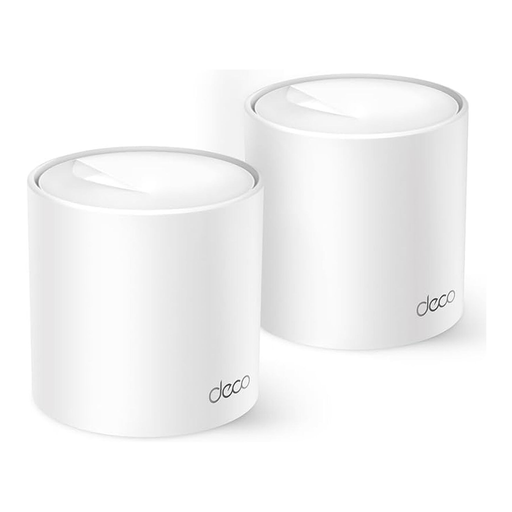
TP-Link Deco X1500, 2-pack

TP-Link Deco X1500 (2-pack)

A two-unit mesh kit for households that want to use their network in more rooms.

Wi-Fi 6, dual-band, AX1500 and Gigabit Ethernet.

View at Joybuy
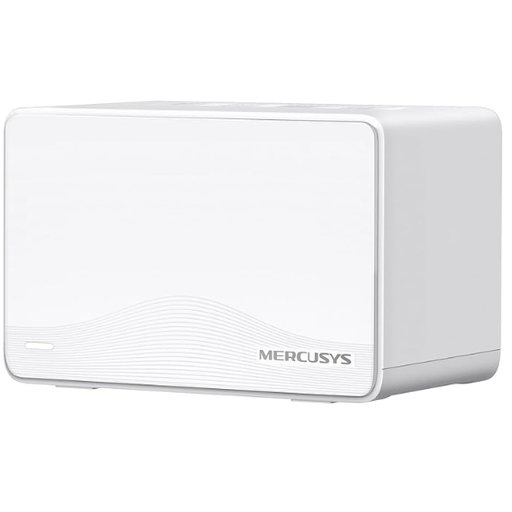
MERCUSYS Halo H25BE, 2-pack

MERCUSYS Halo H25BE (2-pack)

A two-unit kit for creating a mesh network across several rooms.

Wi-Fi 7, dual-band, BE3600 and three Gigabit ports per unit.

View at Joybuy
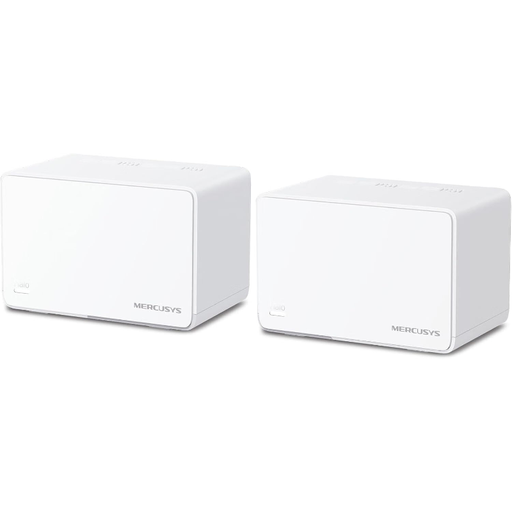
MERCUSYS Halo H3000X, 2-pack

MERCUSYS Halo H3000X (2-pack)

A two-unit mesh kit for extending your network across several rooms.

Wi-Fi 6, dual-band, AX3000 and three Gigabit ports per unit.

View at Joybuy
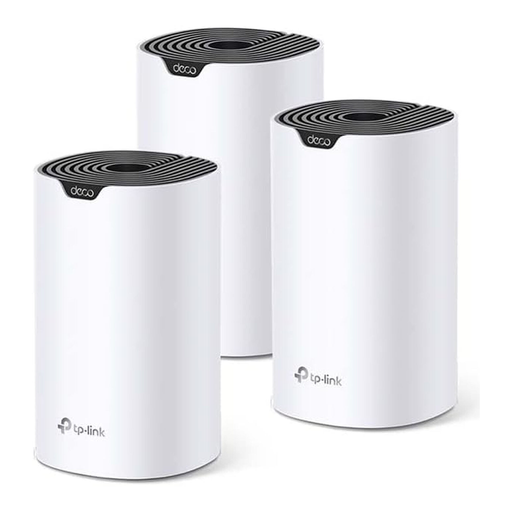
TP-Link Deco S4, 3-pack

TP-Link Deco S4 (3-pack)

A three-unit mesh kit for households that want to connect several rooms to their home network.

AC1200, dual-band and Gigabit Ethernet.

View at Joybuy

Frequently asked questions

Will mesh help if the workshop already freezes right next to the router?

Mesh won’t fix a bottleneck with your internet connection. First, check your connection speed: the German Federal Network Agency’s broadband measurement tool lets you compare your actual data transfer rate with the rate specified in your contract.

Where should I place a wireless mesh node?

Don’t put the node somewhere it can’t get a usable signal. Try an in-between location with a connection to the router. If its Speed Home WLAN has a weak connection, Deutsche Telekom recommends placing it closer to the router or other Wi-Fi extenders.

Can I keep my existing router?

You may be able to, provided the new device is compatible with your router and the operating mode you want to use. Deutsche Telekom describes both extending a compatible mesh router with Speed Home WLAN and setting it up as a separate mesh base. Check that your specific devices will work together before buying.

What should I know about a wired Deco backhaul?

TP-Link recommends first setting up the Deco units on the same network using the app, then connecting them with Ethernet cables. The cabling depends on whether you’re using router or access point mode.

What security steps should I take after setup?

Germany’s Federal Office for Information Security recommends keeping your firmware up to date, using a long Wi-Fi password and configuring your router securely. Also check how to install firmware updates for your specific device.