Yearbook team with limited desk space
If you need room for a keyboard and papers alongside your monitor, make sure you factor in the space taken up by the stand. BenQ lists the PD2506Q’s depth with its stand as 256,9 mm.


For a small desk, start by measuring the available width and depth, allowing space for your keyboard and papers. Then weigh up the benefits of more vertical layout space against a higher QHD resolution. If you’re checking photos for print, calibration, suitable profiles and the printer’s specifications also matter: Adobe points out that a calibrated monitor alone doesn’t guarantee accurate colour reproduction.
If you need room for a keyboard and papers alongside your monitor, make sure you factor in the space taken up by the stand. BenQ lists the PD2506Q’s depth with its stand as 256,9 mm.
For text, captions and toolbars, it’s important that a typical yearbook page remains easy to read on screen. Prad.de highlights pivot functionality as particularly useful when working with portrait photos and magazine pages.
If you’re assessing photos for a printed edition, your monitor, colour profiles and print specifications all need to work together. Adobe explains that a calibrated monitor alone doesn’t guarantee accurate colour reproduction.
Start by measuring your available space and checking how you want to view your layouts. Your print workflow and laptop connections can then help narrow down the options.
| Buying priority | What to check | Who is it important to? |
|---|---|---|
| Footprint and positioning | Compare your desk’s width and depth with the monitor and stand dimensions; check the adjustability and mounting options. | If I need room for a keyboard and papers alongside my monitor, I want to keep the space taken up by the stand in mind. Around 29 % of consumers prioritise the monitor’s footprint. |
| Workspace for page layouts | Try a typical page with its toolbars at your intended resolution and scaling; check for pivot functionality if you work with portrait pages. | When I’m working on a yearbook page, I want to see text and images clearly at the same time, without constantly adjusting the view. Around 29 % of consumers prioritise layout space. |
| Assessing photos for print | Check the output profile and proofing requirements with your printer; consider the colour mode and a suitable monitor profile. | When I assess photos for print, I want the on-screen display to match the printer’s specifications. Around 24 % of consumers prioritise checking print colours. |
| Laptop connectivity | Check video output, the power required for charging and the specifications of the particular USB-C port. | When I work on a laptop, I don’t want to clutter my small desk with unnecessary connections. Around 18 % of consumers prioritise laptop connectivity. |
The diagonal measurement doesn’t tell you how much desk space the stand takes up. BenQ lists the depth of its 25-inch PD2506Q with stand as 256,9 mm.
Before buying, check the available desk space and the dimensions of the specific monitor, including its stand.
If the stand doesn’t fit, you may need a suitable mount; check that it can be attached to your desk, too.
An advertised sRGB or AdobeRGB colour gamut doesn’t, by itself, prove that the screen colours will match those in the printed yearbook. Adobe points out that a calibrated monitor without a suitable profile doesn’t guarantee accurate reproduction.
Check the output profile and proofing requirements with your printer, then set the colour mode and monitor profile to suit your workflow.
USB-C alone doesn’t tell you whether a laptop can output video through that port or charge at a sufficient power level. ASUS lists 96 W Power Delivery for the PA24ACRV, while BenQ lists 65 W for the PD2506Q.
Check the video output capabilities of your laptop’s port and its power requirements against the specifications of the specific monitor model.
Depending on the port and power requirements, you may need a separate laptop charger.
The ProArt range includes models for creative work, with the PA24ACRV offering a compact QHD option.
The PD2506Q from the Creative Pro range is a 25-inch QHD option for layout and image editing.
The ColorEdge CS2400S is an option for print workflows focused on colour management.
The Pro P2425DE is a compact QHD work monitor with a USB-C hub.
The 24BQ55WY-B is a 24-inch 16:10 option if you need more vertical layout space.
The following 24-inch FHD monitors are worth considering for compact layout work. Check that their resolution, connections and stand features suit your workflow.
 No image available
A compact option for layout work if FHD gives you enough room to view your pages.
1920 × 1080 pixels; 99 % sRGB according to the product listing; HDMI and VGA; tilt adjustment; listed depth: 185,1 mm.
FHD offers less layout space than QHD and fewer vertical pixels than WUXGA.
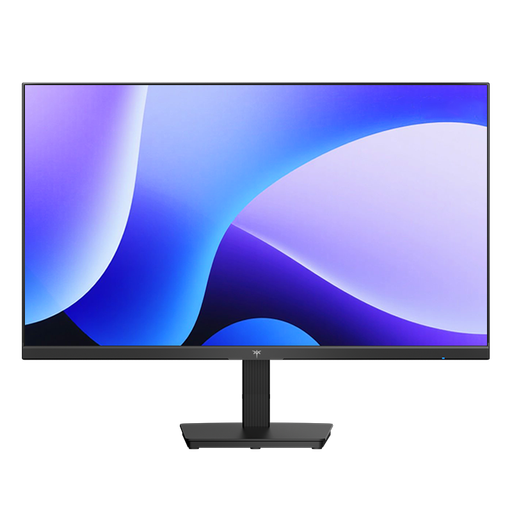 No image available
Designed for layouts on a 24-inch display; check whether the FHD resolution is sufficient for your pages and tools.
1920 × 1080 pixels; 144 Hz and 116 % sRGB according to the product name; HDMI and DisplayPort according to the product description.
FHD offers less layout space than QHD and fewer vertical pixels than WUXGA.
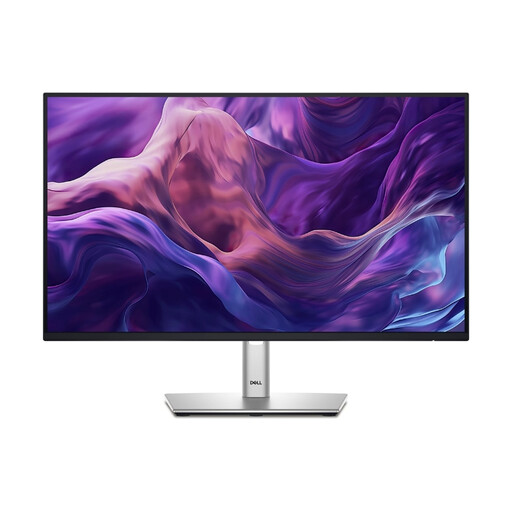 No image available
A 24-inch option for layout work if FHD and USB-C suit your laptop.
FHD; IPS; USB-C. The product name states that it comes with a three-year warranty.
FHD offers less layout space than QHD and fewer vertical pixels than WUXGA. Check your laptop port’s capabilities and the power required for charging.
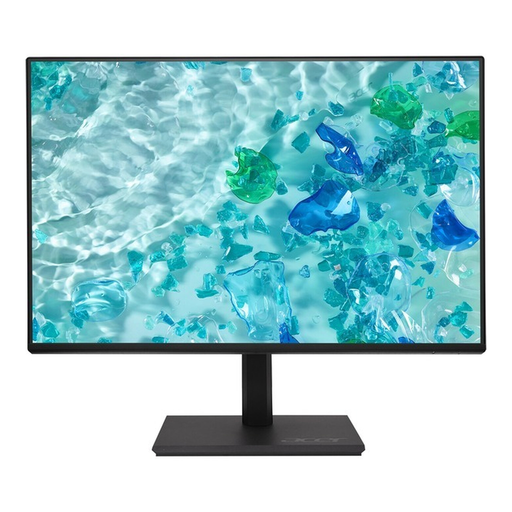 No image available
Pivot functionality may be useful when viewing portrait yearbook pages.
FHD IPS display; height adjustment and 90° pivot.
FHD offers less layout space than QHD and fewer vertical pixels than WUXGA.
 No image available
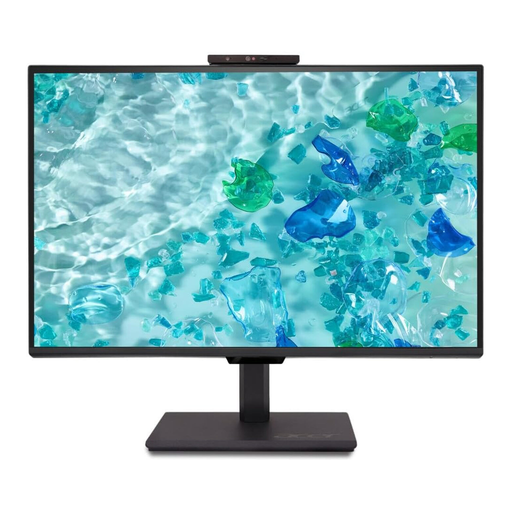
Pivot functionality and height adjustment can help you position the monitor for portrait pages.
FHD resolution; pivot and height adjustment; integrated 5 MP IR webcam with microphone.
FHD offers less layout space than QHD and fewer vertical pixels than WUXGA.
Not for every task. For text and page layout, desk space and a clear, easy-to-read workspace come first. If you’re checking colours for print, make sure your monitor settings, colour mode, ICC profiles and print specifications are all aligned. An advertised colour gamut alone isn’t enough.
Choose your preferred colour mode on the monitor and use a matching monitor profile. For a print preview, check the output profile with your printer and use the proofing settings in a colour-managed application. Factory calibration doesn’t replace checking your entire workflow. Adobe points out that a calibrated monitor alone doesn’t guarantee accurate colour reproduction.
Check the space, viewing position and adjustability at the actual workstation. The Federal Institute for Occupational Safety and Health describes requirements for screen-based workstations in workplaces and teleworking under ASR A6; its scope doesn’t automatically extend to private screen use. Whether a particular space at a school falls under it depends on how it’s used and classified.
No. The German Environment Agency points out that old electrical equipment must be collected separately. Local recycling centres offer a free way to return it; other return options depend on the relevant terms and conditions.