What should you look for when buying?
For a shared yearbook workspace, start by considering how it will be used day to day: layout and legibility, changing seating positions, print preparation or connecting multiple devices.
| What matters when buying |
What to check |
Who is it important to? |
| Layout and legibility |
Test the resolution and scaling with a typical yearbook page and your layout software. |
When I’m working on pages, text and photos side by side, everything needs to stay easy to read at my preferred scaling. Around 36% of consumers put this layout and legibility need first. |
| Adjustability at the desk |
Check the height adjustment and other movement options against your seating position and available desk space. |
When several people use the screen, I want to be able to set it up for different seating positions. Around 29% of consumers prioritise this adjustability. |
| Colour before printing |
Match colour modes and profiles to the printer’s specifications, and check whether proofs are needed. |
When I’m assessing yearbook photos for a specific print process, I need a colour workflow that’s suited to it. Around 21% of consumers put this controlled approach to colour assessment first. |
| Connecting multiple devices |
Check the video signal, cable, charging power and, if needed, KVM compatibility for each device. |
When different computers and shared peripherals are used at the desk, I want to make sure the connections and switching between devices work for me. Around 14% of consumers prioritise connectivity. |
Joybuy products for layouts, photos and switching between devices
The following Joybuy models include 27-inch QHD and 4K monitors, including models with USB-C docking. Compare the resolution, adjustability and connections of each model with your layout work and the computers you use.
 No image available
MSI PRO MP273UPDE E6 27-inch 4K UHD IPS monitor
For a detailed view of yearbook pages and photos if you want to work with a 4K display.
The product specifications list a 27-inch display, 3.840 × 2.160 pixels and 60 Hz, along with a matte finish, 10-bit colour depth and sRGB, User and HDR picture modes. According to the model specifications, the stand is height-adjustable, swivels and tilts, and can be rotated to portrait orientation.
View at Joybuy
 No image available
INNOCN CB27U1 27-inch 4K UHD, 90 W USB-C
For detailed images and layouts if you want to connect a compatible device via USB-C.
The product specifications list a 27-inch display, 3.840 × 2.160 pixels, an IPS display, 120 Hz and USB-C with signal transmission and 90 W Power Delivery. The product description also lists 100% sRGB, 99% Adobe RGB and Delta E < 1. These figures are no substitute for checking the printer’s requirements or arranging a proof if needed.
View at Joybuy
 No image available
Philips 276B9 27-inch QHD IPS monitor
For layouts, text and images if QHD is enough and you want to connect a compatible laptop via USB-C.
The product specifications list 2.560 × 1.440 pixels, 75 Hz and USB-C with up to 65 W Power Delivery. According to the description, the monitor has a USB hub and HDMI and DisplayPort connections. The stand is height-adjustable, tilts and swivels, and can be rotated to portrait orientation.
View at Joybuy
 No image available
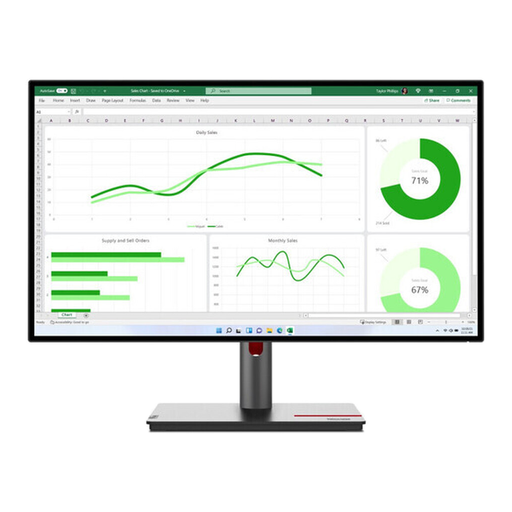
Lenovo ThinkVision P27q-30 27-inch QHD IPS monitor
For layout and text on a QHD workspace if you need to adjust the screen for different seating positions.
The product specifications list 2.560 × 1.440 pixels, an IPS panel and 60 Hz. The stand offers height adjustment, tilt, swivel and pivot. The product description also lists factory calibration with Delta E < 2, 99% sRGB and 95% DCI-P3. These figures alone don’t guarantee colour accuracy for print.
View at Joybuy
 No image available
MSI PRO MP275QPDGDE 27-inch WQHD docking monitor
For a shared workspace where compatible computers and, if needed, peripherals are swapped between users.
The product specifications list 2.560 × 1.440 pixels, an IPS display and 100 Hz. USB-C docking with 98 W Power Delivery, KVM, RJ45, daisy-chain support and an integrated webcam are also listed; the stand is height-adjustable. The stated figures of 84% sRGB and 79% DCI-P3 don’t in themselves guarantee colour accuracy for print.
View at Joybuy
Frequently asked questions
Does the ASR A6 require you to buy a specific monitor for a school yearbook?
No. A school yearbook project alone doesn’t mean you have to buy a particular monitor. The ASR A6, issued by the Federal Institute for Occupational Safety and Health and the Committee for Workplaces, covers screen-based work within its respective scope. Whether it applies to a particular workstation depends on the working conditions. You can still consider adjustability and suitable positioning as selection criteria.
What should I check before connecting different laptops?
For each laptop, check whether its connection supports a video signal, whether the monitor and cable are compatible, and whether the stated charging power is sufficient. For the EV2740X, EIZO lists USB-C with DisplayPort Alt Mode and up to 94 W Power Delivery. KVM is an additional feature for switching between shared peripherals.
Is a wide monitor colour gamut enough for yearbook photos that are ready to print?
No, a wide colour gamut alone isn’t enough. Agree the workflow with your printer and match the colour modes, profiles and necessary checks to it. Adobe InDesign notes that an on-screen preview can’t show certain print characteristics, so physical proofs may be needed.
What rights do I have when buying a monitor online from a trader?
For a consumer purchase, the EU consumer portal states that you have at least two years of legal guarantee from the date you receive the goods; this is separate from any voluntary manufacturer’s warranty. For a qualifying distance contract, you generally have a 14-day cancellation period from delivery.


