
Lieferung heute & morgen

Qualitätsgarantie

Willkommens-Angebote freischalten: KOSTENLOSE Lieferung | Bis zu 80 % RABATT | Kostenlose 30-Tage-JoyPlus-Testphase
App herunterladen
Modern laptops like the MacBook Pro or Dell XPS offer high performance in a sleek design, but often at the expense of port selection. Anyone looking to be productive in a home office or as a creative professional will quickly run into limitations, especially when trying to create a dual-monitor setup. A USB-C Hub Dual HDMI promises a simple, single-cable solution. However, the market is flooded with products that have misleading claims, which can lead to frustration and wasted money.
This guide will help you identify the critical features and make an informed decision. We'll show you the most common pitfalls and which technical specifications truly matter.
Many users invest in a supposed all-in-one solution, only to find it doesn't work as expected. Watch out for these three common problems to avoid disappointment.
To avoid a bad purchase, you should check the following technical specifications before making a decision. These are crucial for the performance and reliability of your setup.
The primary goal is to run two monitors. Here, the 4K 60Hz specification is critical. Many cheaper hubs advertise 4K but only deliver this resolution at 30Hz. A 30Hz refresh rate results in a noticeably choppy experience, which is especially apparent with mouse movements and when dragging windows. A high-quality USB-C Hub 4K 60Hz should be able to deliver this rate on at least one, and ideally both, HDMI outputs simultaneously. Check the product description carefully, as performance often drops when both ports are used in parallel.
A good hub is more than just a USB-C Adapter 2x HDMI. Consider which devices you use daily:
For a USB-C port to output a video signal at all, it must support DisplayPort Alternate Mode. This is the case with most modern laptops (e.g., for MacBook Pro Adapter applications, Dell XPS, HP Spectre), but not all of them. Thunderbolt 3 or Thunderbolt 4 ports are a more powerful version of USB-C and guarantee compatibility for multi-monitor setups.
Based on the criteria mentioned, we have identified a few products that are a suitable solution for specific user groups.
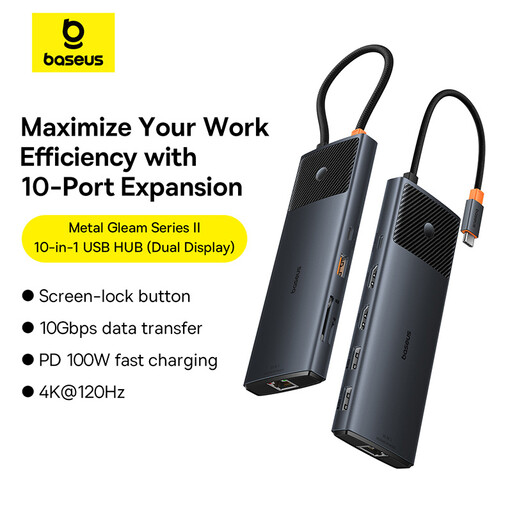
Why This Fits Their Persona: Ideal for users who want to create a clean and versatile workspace with just a single cable. This hub combines all the necessary ports for a full-featured desk setup.
With 100W Power Delivery, the laptop is charged reliably. The metal casing aids in heat dissipation, preventing performance throttling during intensive use.
Comprehensive 10-in-1 connectivity, including 10 Gbps high-speed USB ports and a stable RJ45 LAN port. One HDMI port supports up to 8K@30Hz/4K@120Hz.
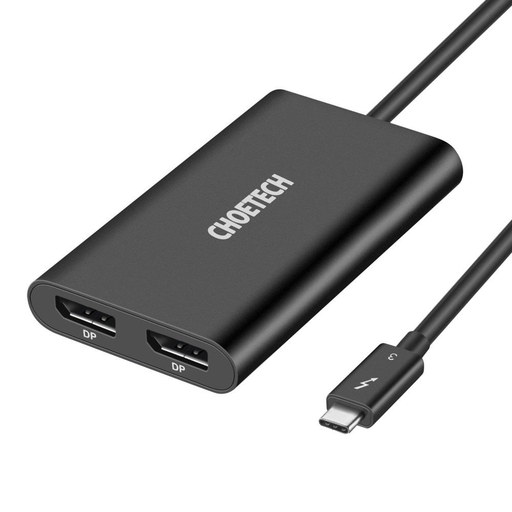
Why This Fits Their Persona: Perfect for video editors or designers who use two high-resolution monitors with DisplayPort connections and require maximum video bandwidth.
This adapter is specifically designed for Thunderbolt 3, leveraging its high 40 Gbps bandwidth. This guarantees a stable 4K resolution at 60Hz on both monitors simultaneously, without compromise.
Specialised, high-performance video connection. Plug-and-play functionality with no driver installation required. Compact and durable aluminium housing.
Why This Fits Their Persona: A great choice for users of MacBook Pro or Air with M-Pro/Max/Ultra chips who are looking for a full-featured USB-C docking station for 2 monitors.
This model avoids the incompatibility pitfall by being clearly designed for high-performance setups. For MacBooks with an M-Pro/Max chip, extended dual-display mode is possible. For base M-series chips, the system-level limitation (mirroring) applies.
Offers a comprehensive port selection that goes beyond just video output, including LAN and an SD card reader, making it a true Baseus USB-C Hub for professional use.
We have compiled a complete, up-to-date list of products that fully meet these strict selection criteria and comply with rigorous safety standards.
Does every USB-C hub with two monitors work on a MacBook? No. Specifically, MacBooks with the standard chips (M1, M2, M3) natively support only one external monitor. To run two extended (not just mirrored) displays, you need a hub with DisplayLink technology, which requires special drivers. In contrast, MacBooks with Pro, Max, or Ultra chips support multiple external monitors via standard Thunderbolt hubs. Always check the compatibility of your specific MacBook model.
Do I need a separate power adapter for a USB-C docking station with 2 monitors? Usually not. Most hubs and docking stations use Power Delivery Passthrough. You connect your laptop's original USB-C power adapter to the hub's PD input port. The hub then powers itself and passes the remaining power through to the laptop to charge it. Make sure the hub's PD output is sufficient for your laptop (e.g., 100W).
What is the difference between 4K@30Hz and 4K@60Hz in a dual-monitor setup? The difference is the refresh rate. 60Hz means the image is updated 60 times per second, resulting in a smooth and responsive display. 30Hz updates the image only 30 times per second. This manifests as noticeably choppy mouse movement and lag when dragging windows, which can feel strenuous and unproductive over time. For a comfortable work experience, 60Hz is the recommended standard.