
Lieferung heute & morgen

Qualitätsgarantie

Willkommens-Angebote freischalten: KOSTENLOSE Lieferung | Bis zu 80 % RABATT | Kostenlose 30-Tage-JoyPlus-Testphase
App herunterladen
As an owner of an Intel-based MacBook Pro or Air, you're familiar with the challenge: its minimalist port selection complicates building a productive workspace. The desire to connect two external monitors, in particular, often leads to confusion and costly purchasing errors. This guide will help you understand the technical hurdles and find a suitable solution.
By: Joybuy Product Recommendation Officer Date: August 29, 2026
Before making a purchase, it's crucial to understand the most common issues that arise when expanding your MacBook's connectivity.
To avoid these pitfalls, you should focus on three core technical features. These will determine if a docking station meets your requirements for a dual-monitor setup.
Although the connectors look identical, there is a fundamental difference in performance.
For a true extended desktop on two monitors with an Intel MacBook, a docking station needs two separate video outputs that can be driven independently. A MacBook adapter with 2 HDMI ports is a common configuration for this. Ensure the product description explicitly mentions "Extended Mode" for macOS. Models that use two of the MacBook's Thunderbolt 3 ports are often specifically designed for this purpose.
A good multiport adapter for MacBook should offer more than just video outputs. Check if the following ports are available to suit your workflow:
Choosing the right accessory depends on your individual needs. Here are a few options for different use cases.
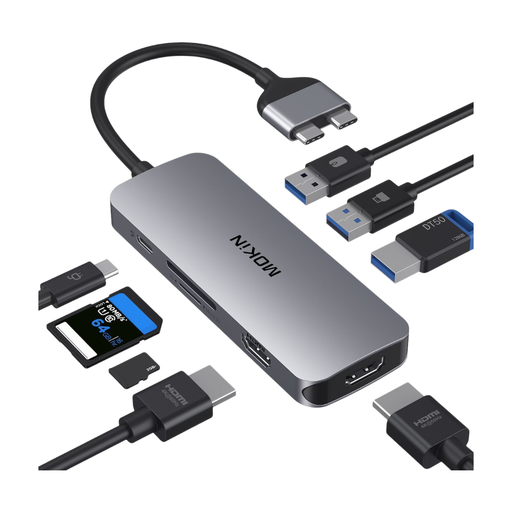
Why This Fits Their Persona: This docking station is designed for users who want to transform their Intel-based MacBook Pro or Air into a fully-fledged desktop workstation. It utilizes two adjacent Thunderbolt 3 ports to ensure a stable connection for a dual-monitor setup and additional peripherals.
According to the manufacturer, this Mokin docking station is specifically designed to run two extended 4K displays on compatible Intel Macs, not just mirrored ones. It directly addresses the most common problem with dual-monitor setups.
An all-in-one solution with 2x HDMI, 3x USB 3.0, a 100W PD charging port, and SD/TF card readers. The design sits flush with the MacBook, creating a clutter-free workspace.
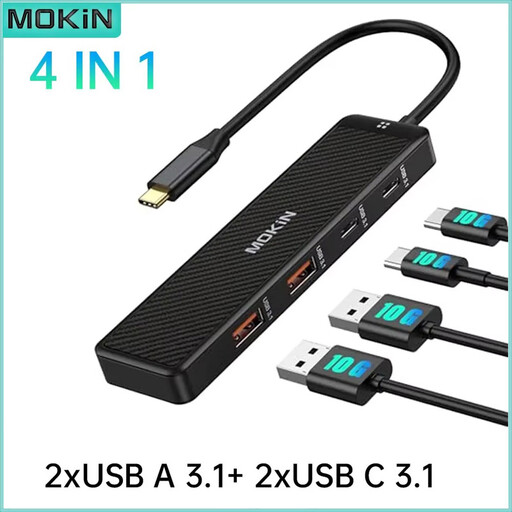
Why This Fits Their Persona: This hub is ideal for users who don't need a second monitor but regularly transfer large amounts of data between various devices (external SSDs, USB drives). It expands a single USB-C port into four high-speed data ports.
This product is clearly positioned as a data-only hub and doesn't create the false impression of having video outputs. It focuses on one job—fast data transfer—and does it reliably.
Supports the fast USB 3.1 standard with speeds up to 10 Gbps. The mix of two USB-A and two USB-C ports offers great flexibility for both modern and legacy peripherals.
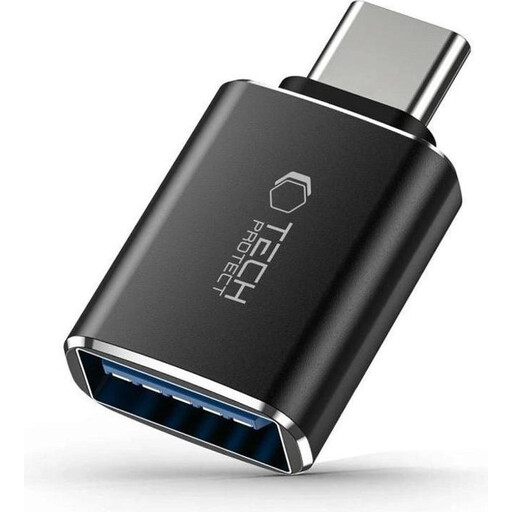
Why This Fits Their Persona: Perfect for users who only occasionally need to connect a single USB-A device—like a flash drive, mouse, or keyboard—to their MacBook. The focus is on maximum portability and simplicity.
This adapter is a single-purpose solution for a specific problem. It doesn't promise multi-functionality, thus avoiding disappointment. You get exactly the function you need without paying for unused ports.
Extremely compact, lightweight, and durable. It supports USB 3.0 for fast data transfers and is instantly ready to use thanks to its OTG (On-The-Go) functionality.
We have compiled a complete, up-to-date list of products that fully meet these strict selection criteria and all relevant safety standards.
This is a common issue on macOS when using hubs that lack the necessary hardware to drive two independent video streams. For Intel-based MacBooks, you need a docking station that either utilizes two of the laptop's Thunderbolt 3 ports or features special technology like DisplayLink to extend the desktop to two monitors. Standard USB-C hubs with two HDMI ports often only result in mirroring on macOS.
While the docking station can be physically connected, native support for two external monitors on Apple's standard chips (M1, M2, M3) is limited to a single display. Models like the Mokin 8-in-2 docking station featured here are specifically optimized for the architecture of Intel-based MacBooks. To drive two monitors from a MacBook with a standard M-series chip, you typically need a docking station with DisplayLink technology, or you need a MacBook with a Pro, Max, or Ultra chip.
That depends on the model. Many docking stations use Power Delivery (PD) Passthrough. This means you connect your MacBook's original power adapter to the PD input port on the docking station. The dock then passes power through to the MacBook while also powering the connected peripherals. In this case, a separate power supply for the dock itself is not required.