
Lieferung heute & morgen

Qualitätsgarantie

Willkommens-Angebote freischalten: KOSTENLOSE Lieferung | Bis zu 80 % RABATT | Kostenlose 30-Tage-JoyPlus-Testphase
App herunterladen
A modern laptop is powerful and portable, but the number of ports is often reduced to a minimum. The few available USB ports are quickly occupied by a mouse, keyboard, and perhaps a webcam. A USB 3.0 hub seems like a simple solution, but the market is flooded with products whose weaknesses only become apparent in daily use. Many users experience frustration from unstable connections or disappointing data transfer rates.
This guide will help you identify common pitfalls and make an informed decision. We focus on the technical features that truly matter, ensuring your new USB 3.0 splitter works reliably and actually improves your workflow instead of disrupting it.
Before we dive into the important specifications, let's look at two widespread problems that often lead to a poor purchase:
To avoid the problems mentioned above, you should check two key aspects before buying. These determine whether a hub is suitable for your needs.
The type of power supply is the most important criterion for stability.
The number of ports is obvious, but how they are managed is crucial for functionality.
Here are some recommendations tailored to different usage scenarios that take the above criteria into account.
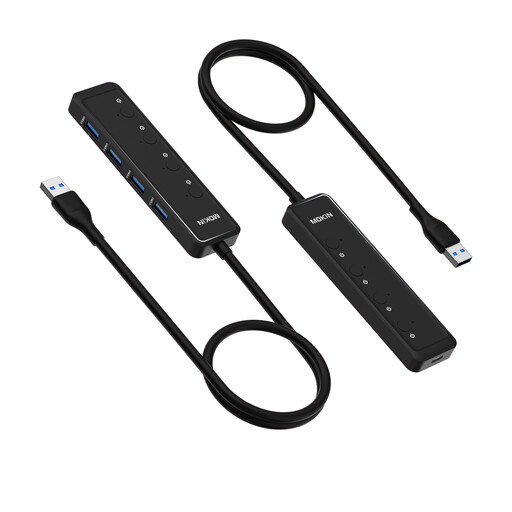
Why This Fits Their Persona: Ideal for home office users who run multiple peripherals, including external hard drives, simultaneously. The switches provide full control, and the long cable helps keep the desk tidy.
The dedicated USB-C "Power IN" port solves the problem of unstable power supply. It ensures that even power-hungry devices operate reliably and without connection drops.
Four USB 3.0 ports with up to 5 Gbps; individual on/off switches with LED indicators; optional power supply for maximum stability.
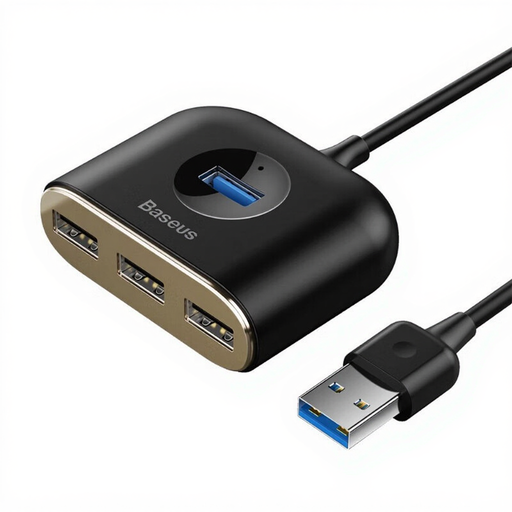
Why This Fits Their Persona: A compact and lightweight solution for users who primarily connect simple peripherals like a mouse, keyboard, and an occasional USB stick on the go or with a laptop.
This model avoids misleading promises by clearly distinguishing between one high-speed USB 3.0 port for fast data transfers and three USB 2.0 ports for standard devices.
Compact design with a 1-meter cable for flexibility; clear and honest port configuration (1x USB 3.0, 3x USB 2.0).
We have compiled a complete, real-time list of products that fully satisfy these strict selection criteria and UK safety regulations.
1. Do I need a USB hub with an external power supply? If you plan to use more than two devices simultaneously or connect high-power devices (external hard drives, SSDs, high-resolution webcams, charging functions), a hub with an external power supply (an active hub) is highly recommended. It ensures stable performance and prevents data loss or device damage. For a simple mouse and keyboard, a passive hub is usually sufficient.
2. Will a USB hub slow down my devices? A USB hub shares the bandwidth of the single computer port it's connected to among all of its own ports. So, if you use multiple high-speed devices for intensive data transfers at the same time (e.g., copying from two external SSDs), you will notice a slowdown. However, for everyday use with a mix of devices like a mouse, keyboard, and a USB stick, the effect is generally not noticeable.
3. Can I charge my smartphone through a USB hub? Standard data ports on a USB hub only provide a very low current (typically 0.5 to 0.9 amps). This is not enough to charge a modern smartphone quickly; at best, it will charge extremely slowly. Some special hubs have dedicated charging ports (often marked "BC 1.2") that can deliver a higher current. Check the product specifications carefully if charging is an important feature for you. The USB-C "Power IN" port on some models is exclusively for powering the hub itself and cannot be used to charge external devices.