
Lieferung heute & morgen

Qualitätsgarantie

Willkommens-Angebote freischalten: KOSTENLOSE Lieferung | Bis zu 80 % RABATT | Kostenlose 30-Tage-JoyPlus-Testphase
App herunterladen
A USB-C Gigabit Ethernet adapter adds a wired LAN connection to laptops, tablets or desktop PCs without an integrated network port. This can be useful when working from home, streaming, downloading large files or transferring data. However, many models look similar on the outside while differing considerably in connection standard, speed and operating system support.
That is why our selection follows clear, easy-to-understand criteria: USB-C compatibility, RJ45 network standard, maximum data rate and simple set-up.
The 1000 Mbit/s designation describes the adapter’s maximum link speed. It does not automatically mean that downloads will run continuously at 1000 Mbit/s. The following factors also play a decisive role:
A USB-C-to-RJ45 adapter with 10/100/1000 Mbit/s can therefore technically support Gigabit LAN. However, if it is used with an older Fast Ethernet network or a limited tariff, the connection will remain correspondingly slower.
USB-C initially describes the shape of the plug. Depending on the device, the port may support different standards. For a USB 3.0 Ethernet adapter, the USB-C port must provide the required data transfer capability. On some devices, USB-C is intended solely for charging or slower data rates.
Before buying, check the following:
A plug-and-play LAN adapter is automatically recognised by many current versions of Windows and macOS. With older systems or specialised Linux configurations, a driver may still be required. Use with Android devices also depends on USB OTG support and the relevant system version.
The statement ‘compatible with Windows and Mac’ should therefore always be considered in relation to the model, operating system and connection type.
The RJ45 port connects the adapter to a router, switch or network socket. For a Gigabit connection, the model should support 10/100/1000 Mbit/s. An adapter supporting only 10/100 Mbit/s, on the other hand, is a 100 Mbit/s network adapter and limits the wired connection to Fast Ethernet.
For cabling, we recommend using at least a suitable Cat-5e cable. Higher cable categories may be worthwhile for longer runs or a new installation. However, the adapter itself does not increase the speed of your internet plan.
Most compact models draw power directly from the USB port. This means no additional power supply is required. The casing may become warm during longer data transfers. This is generally possible with bus-powered adapters; however, the adapter should not be covered or used in poorly ventilated areas.
For mobile use, a low weight and a short, flexible connection cable are practical. When unplugging the adapter, pull on the plug housing rather than the cable. An aluminium casing can help dissipate heat, but it does not replace adequate ventilation.
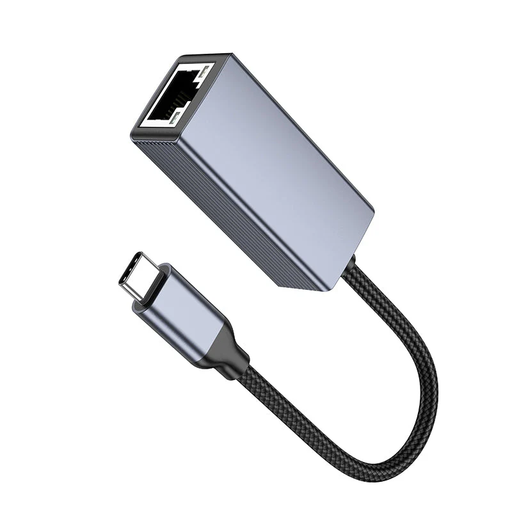
Why this product suits this profile: This compact USB-C-to-RJ45 adapter is designed for users who want to connect their laptop or tablet to a wired network without additional software. According to the product specifications, it supports 10/100/1000 Mbit/s as well as Windows, macOS, Linux and Android with OTG support.
The Type-C-to-RJ45 design prevents confusion with USB-A models. Nevertheless, you should check before buying whether the USB-C port supports data transfer.
Gigabit Ethernet support, a compact design and, according to the product description, plug-and-play compatibility with several operating systems.
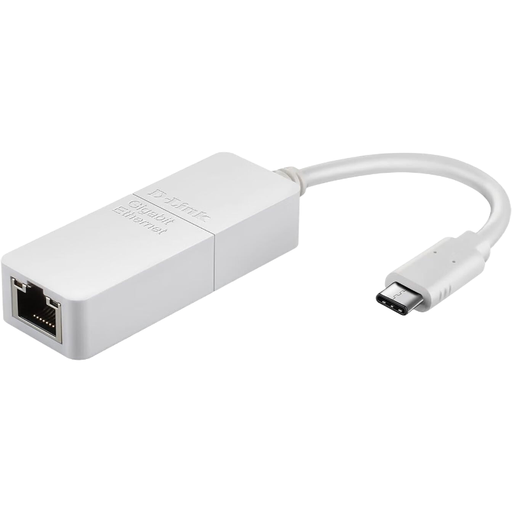
Why this product suits this profile: This adapter is designed for desktop PCs and laptops with a USB-C port and supports USB 3.0 and 10/100/1000 Mbit/s according to the product description. Windows and macOS compatibility are explicitly listed.
The technical specifications state the USB 3.0 standard and the full Gigabit range. This makes it easier to compare the model with your existing hardware.
Up to 1000 Mbit/s, a USB-C connection, automatic set-up on supported systems and a stated weight of 27.6 grams.
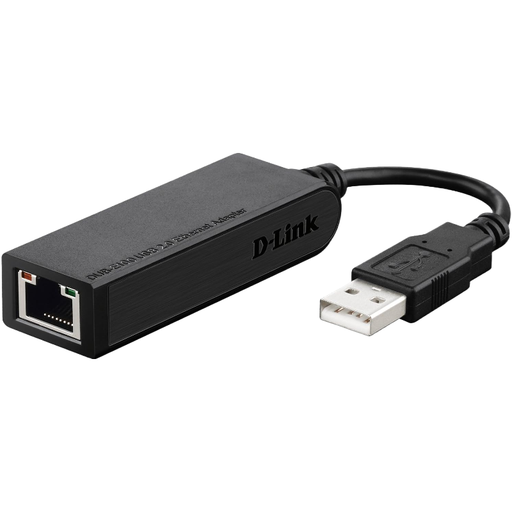
Why this product suits this profile: This model is an option for devices with a USB-A connection and older network infrastructures. It is explicitly not a USB-C Gigabit adapter, making it suitable only when 100 Mbit/s is sufficient or a USB-A port is available.
The clear 100 Mbit/s limit prevents unrealistic expectations of Gigabit performance. Buyers can decide in advance whether the lower data rate is sufficient for printers, scanners or basic networking tasks.
USB 2.0 connection, 10/100 Mbit/s support and a compact design. A suitable additional adapter is required for USB-C laptops.
Setting up a suitable USB-C network adapter usually takes just a few steps:
For video conferencing and working from home, we recommend keeping the signal path as short as possible and avoiding unnecessary additional adapters. For gaming or large data transfers, your router, cable and adapter should all support the same speed range.
We have put together a complete, regularly updated list of products that fully meet these strict selection criteria and the safety regulations applicable in the EU.
No. The port must support data transfer. USB-C connections intended solely for charging are not suitable. In addition, device manufacturers may restrict support for certain adapters or operating systems.
Many current Windows and macOS systems detect the adapter automatically. With older operating systems, Linux variants or Android devices with OTG, a suitable driver or an additional setting may be required.
Most compact models draw their power directly from the USB port. Consumption depends on the chipset, network activity and device. The casing may become warm during longer transfers. It is therefore best to place the adapter somewhere open, dry and well ventilated.