
Lieferung heute & morgen

Qualitätsgarantie

Willkommens-Angebote freischalten: KOSTENLOSE Lieferung | Bis zu 80 % RABATT | Kostenlose 30-Tage-JoyPlus-Testphase
App herunterladen
Modern laptops like the MacBook Pro or slim Windows models are getting thinner, but this elegance comes at a cost: a severely reduced number of ports. A USB-C hub promises a solution, but the market is overwhelming. Many products entice buyers with impressive specifications that often don't hold up in practice. As a Joybuy Product Recommendation Officer, I'm here to help you identify the typical pitfalls and make an informed decision.
Before you invest, it's crucial to critically examine marketing claims. Three issues in particular frequently lead to disappointment and unnecessary expense:
To avoid buyer's remorse, focus on three core technical features. These will determine whether a USB-C multiport adapter meets your daily needs.
When working with external monitors, it's not just the ports (HDMI, DisplayPort) that matter, but also their performance capabilities.
Check the specifications carefully. The advertised wattage refers to the input power from the charger. The actual output power your laptop receives will always be lower. For a standard ultrabook, 65 watts of charging power is often sufficient, whereas a 16-inch MacBook Pro requires at least 85 watts under full load to charge reliably.
The type and speed of the USB ports determine the functionality of your setup.
Based on these objective criteria, we have identified several models that represent a suitable solution for specific user groups.
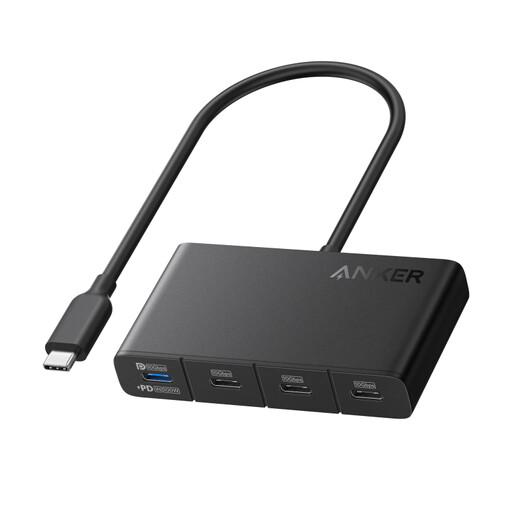
Why This Fits Their Persona: Ideal for users who are often on the go and need a compact yet powerful solution for presentations and connecting essential peripherals. Its light weight and small footprint won't weigh down your travel bag.
This hub delivers a smooth 4K@60Hz video output instead of the often-disappointing 30Hz version. It also clearly specifies a 10 Gbps data rate, avoiding misleading speed claims.
Combines a very compact design with high performance for video and data transfer. Supports 100W Power Delivery passthrough.
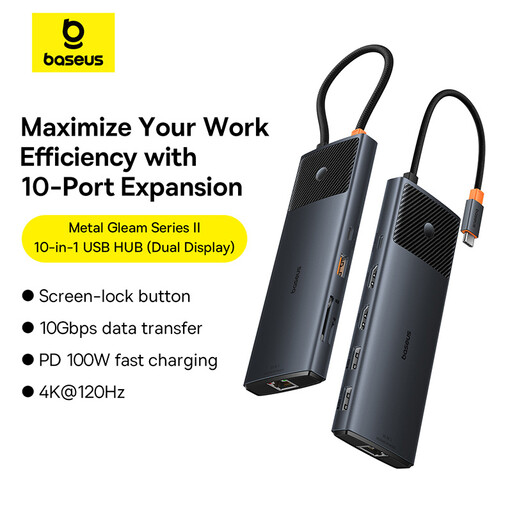
Why This Fits Their Persona: Perfect for users looking to set up a permanent workstation with multiple monitors and peripherals. The hub consolidates all necessary ports to reduce cable clutter and boost productivity.
The sturdy aluminum housing ensures effective heat dissipation, preventing overheating when multiple ports are used simultaneously. The clear specifications for both HDMI ports (one up to 8K, the other 4K@60Hz) provide transparency.
Supports two external monitors, a RJ45 Gigabit LAN port for a stable internet connection, and fast 10 Gbps ports for both USB-A and USB-C.
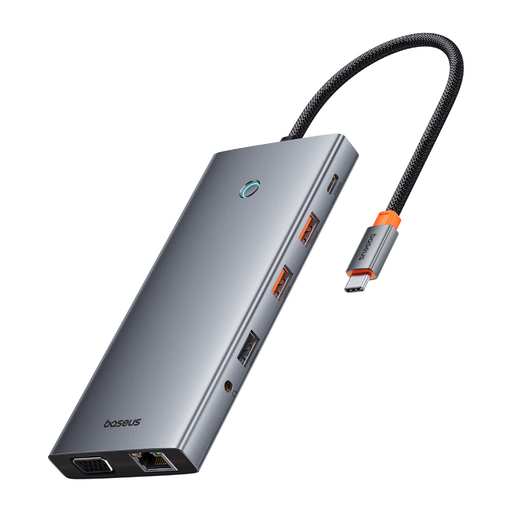
Why This Fits Their Persona: Designed for users with maximum demands, such as video producers, designers, or developers who need a complex setup with multiple monitors and high-speed access to storage and peripherals.
This hub offers an exceptional variety of ports and clearly specifies the performance of each one. The 100W PD charging is robust enough for demanding laptops, and its integrated chip protects against overheating.
Supports up to four monitors (2x HDMI, 1x DP, 1x VGA), 8K resolution via DisplayPort, and multiple 10 Gbps data ports for maximum transfer speeds.
We've compiled a complete, real-time updated list of products that fully meet these strict selection criteria and all relevant safety standards.
1. Why does my USB-C hub get hot during use? A certain amount of warmth is normal, as the internal electronics generate heat when converting signals and transferring power. An aluminum casing helps to dissipate this heat efficiently into the surrounding environment. However, if the hub becomes too hot to touch or starts to malfunction, it could indicate an overload or a defect.
2. Do all USB-C hubs work the same way with MacBook and Windows? Not exactly. While most basic functions like USB ports and Power Delivery are identical across platforms, there are differences in how multiple monitors are handled. Windows supports Multi-Stream Transport (MST), which allows you to display different content on multiple external monitors (extended mode). macOS generally does not support MST over USB-C; most hubs can therefore only mirror the display to external monitors when used with a Mac. For a true extended multi-monitor setup on a Mac, a docking station with DisplayLink technology is often required.
3. What does "Power Delivery Passthrough" mean? "Passthrough" means the hub channels power from an external USB-C power adapter "through" to charge the connected laptop. As mentioned earlier, the hub itself consumes a portion of this power. Therefore, a 100W passthrough hub requires a 100W power adapter to provide approximately 85-90 watts to the laptop. Without a connected power adapter, the hub draws power from the laptop's USB-C port, which will drain its battery faster.