
Lieferung heute & morgen

Qualitätsgarantie

Willkommens-Angebote freischalten: KOSTENLOSE Lieferung | Bis zu 80 % RABATT | Kostenlose 30-Tage-JoyPlus-Testphase
App herunterladen
Modern laptops like the MacBook Pro, Dell XPS, or Microsoft Surface are powerful and portable, but their minimalist port selection presents a challenge for many users at home and in the office. A USB-C docking station promises to solve this problem by transforming a single USB-C port into a multitude of connections. However, the market is flooded with products whose marketing claims often don't match reality. Before you make a decision, you should be aware of the three most common pitfalls that lead to frustration and wasted money.
To avoid a bad purchase, you should focus on the technical specifications that are crucial for a stable and high-performance work environment.
For a smooth and comfortable viewing experience on external monitors, a refresh rate of 60 Hz at 4K resolution is essential. Pay close attention to this specification in the product details. If you're planning to use a laptop docking station for 2 monitors or more, check if the device supports Multi-Stream Transport (MST). This technology, which primarily works on Windows, allows for different content to be displayed on multiple screens. MacBook users should note that macOS does not support MST in the same way and often only allows for display mirroring, unless the docking station uses special technologies like DisplayLink.
The Power Delivery (PD) feature determines how many watts are used to charge your laptop via the docking station. A rating of 100W Power Delivery is a solid benchmark for most modern laptops, offering enough reserve power to reliably supply connected peripherals as well. Compare this value with the wattage of your laptop's original power adapter. Insufficient PD wattage can cause your laptop's battery to slowly drain even while connected to the dock.
A good docking station is more than just a USB-C to HDMI and LAN adapter. It should offer a thoughtful selection of ports for various use cases:
Instead of making a one-size-fits-all recommendation, we have identified products tailored to specific user profiles and their requirements.
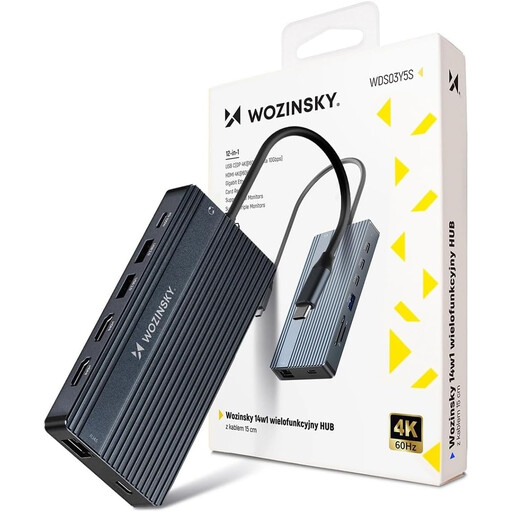
Why This Fits Their Persona: This USB-C Hub 14 in 1 is designed for users who refuse to compromise. It transforms a laptop into a full-fledged workstation and is ideal for complex multi-monitor setups, video editing, and connecting every conceivable peripheral.
It delivers true Multiport Adapter 4K 60Hz performance, offers full 100W Power Delivery, and integrates all essential ports, including Gigabit LAN and an SD Card Reader USB-C. This allows it to bypass all common pitfalls.
Maximum port variety with 14 ports, including 2x HDMI, DisplayPort, and even VGA. The robust aluminium housing ensures excellent heat dissipation.
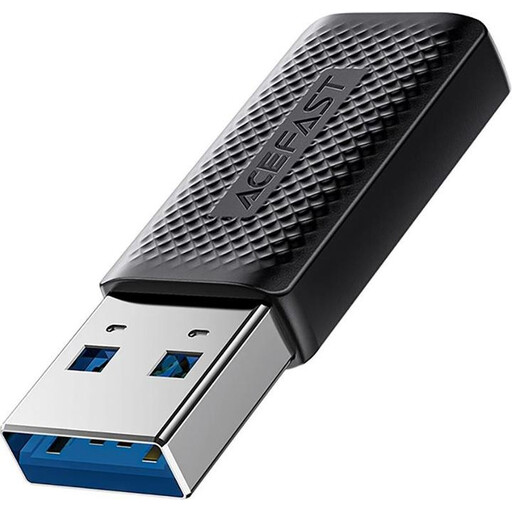
Why This Fits Their Persona: Perfect for users who are frequently on the go and need to solve one single, crucial task: connecting an older USB-A device (mouse, keyboard, flash drive) to their modern USB-C laptop.
This adapter is a specialised tool. It makes no false promises about video or charging power; instead, it reliably solves one problem without compromising on data speed.
Extremely compact and robust thanks to its aluminium housing. It supports the USB 3.0 standard for fast data transfer speeds of up to 5 Gbps.
We have compiled a complete, up-to-date list of products that fully meet these strict selection criteria and German safety regulations.
Does a USB-C docking station need its own power supply? It depends on the model. Smaller, passive hubs draw power directly from the laptop. Larger, active docking stations, especially those with high charging wattage and numerous ports, require their own external power adapter. This is the only way they can reliably charge the laptop while supplying sufficient power to all ports. The product description will typically provide this information.
Does every USB-C docking station work with a MacBook? Generally, yes, but there's a significant limitation when using multiple monitors. macOS does not support Multi-Stream Transport (MST), a technology that allows different images to be output to multiple external monitors via a single USB-C port. As a result, most standard hubs will only mirror the display on a MacBook. For an extended desktop across two external monitors, you need a docking station that is explicitly advertised as macOS-compatible for this purpose (often based on DisplayLink technology) or one that uses two separate USB-C connections to the MacBook.
How hot can a USB-C docking station get during operation? It's normal for docking stations to warm up during operation, especially when charging a laptop and transferring large amounts of data simultaneously. Models with an aluminium housing are designed to effectively dissipate this heat into the surrounding environment. However, if the device becomes too hot to touch comfortably, it could indicate an overload or a defect. Always ensure there is good air circulation around the device.